

















Support
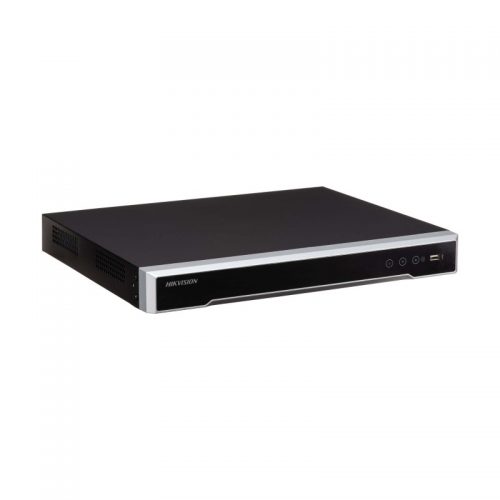
How to Reset a Hikvision NVR Password
Password and Account Recovery
Summary
Use this guide when a Hikvision NVR password has been lost and the owner needs a practical Australian reset workflow using the normal XML support path.
Applies to
- Hikvision NVRs
- Legitimate owner recovery jobs
- Windows SADP XML reset workflow
- Some Hikvision camera password jobs reached through the NVR path
Difficulty and time
Difficulty: Moderate to advanced
Estimated time: 20 minutes to several business hours depending on support timing and the recovery path
What you will need
- Hikvision NVR model number
- Full serial number
- Monitor and mouse access if available
- Windows PC for SADP in the common workflow
- Proof of ownership or order information where required
What this guide covers
- Confirm the real password problem
- Check the local recovery screen
- Export the XML in SADP
- Send the request during business hours
- Import the returned reset file
Password reset jobs on Hikvision recorders should be handled as legitimate owner recovery, not as a shortcut. In real support work, the cleanest path is often the XML workflow through SADP on a Windows PC, with the reset file returned through the proper support chain.
This is different from vague internet advice that says just reset it. The details matter: export the XML, not the CSV, record the full serial number, keep the recorder online, and send the request during business hours if you want a realistic chance of a same-day turnaround.
This page is for legitimate owners and installers acting for legitimate owners. If you are on a Mac, also read the Mac-specific Hikvision password reset page because the best workflow on Mac can be different.
Before you start
Start by confirming that this is really the recorder admin password problem and not an app-account or shared-user issue.
- Check local monitor access first.
- Take a photo of the model label and full serial number.
- If using SADP, put the PC on the same network as the recorder.
- Avoid repeated password guesses that may lock the unit out.
- If you are on Mac, keep the Mac-specific recovery guide handy as well.
The reset request depends on the live XML session
If the recorder powers off, the network path changes, or the SADP session is restarted after the XML is created, the returned reset file may no longer work.
For the common XML workflow, leave the recorder on, leave the network path stable and leave SADP open until the reset is completed.
Step 1: Confirm the exact recorder and access situation
Start by working out what still works. Some owners still have local monitor access. Others have only the network path. The reset method should match the real situation in front of you.
- Check whether the recorder is visible locally on a monitor.
- Confirm whether you know any working user credential.
- Note the current date and time shown on the recorder if visible.
- Confirm the recorder is the device that needs resetting and not just the mobile app account.
Step 2: Use the local login screen if it offers a supported recovery path
Some Hikvision firmware builds expose a local forgot-password or recovery path. If it is there, photograph what the recorder actually shows before changing direction.
- Look for forgot-password or recovery prompts on the local monitor.
- Photograph any QR code or export request shown.
- Do not keep guessing random passwords.
- If the local path is not there or is not enough, move to SADP.
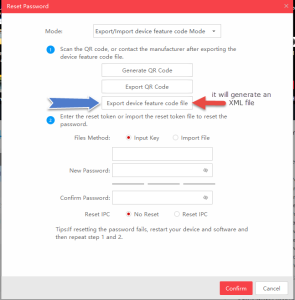
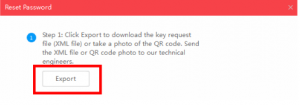
Step 3: Use SADP and export the XML file
For many Australian Hikvision NVR jobs, this is the practical field workflow. The main mistake is exporting the wrong file or losing the session afterwards.
- Download and open the official SADP tool on a Windows PC on the same network.
- Let SADP discover the recorder and confirm the full serial number.
- Choose the forgotten-password path.
- Export the XML file, not the CSV file.
- Keep SADP open once the XML is created.
Step 4: Send the XML and full serial number during support hours
The XML reset workflow relies on support processing the request during business hours. If timing matters, do not leave it until the end of the day.
- Email the XML file and full serial number to enquiries@securitywholesalers.com.au.
- Send it before about 2pm on a weekday if you want the best chance of same-day handling.
- If the product was not purchased from SecurityWholesalers, contact the original reseller first.
- Only Australian-region products are normally handled through this reset path.
Step 5: Import the returned reset file and set the new password
Once the reset file is returned, import it back into SADP while the same recorder session is still alive. Then set the new password cleanly and test the result immediately.
- Import the returned reset file into SADP.
- Set a new strong password and document it properly.
- Log in locally or by browser afterwards to prove the reset worked.
- Check that recording, remote access and the owner handover still make sense afterwards.
Warehouse NVR needed urgent owner recovery
Situation: A warehouse owner still had the recorder online but no one knew the admin password after staff changes. The site needed footage access before the weekend.
Solution used: The recorder was discovered in SADP, the XML was exported, the XML and full serial number were sent early in the day, and the returned reset file was imported back into the same live session.
Why this was chosen: That used the real supported workflow and avoided wasting time on generic internet tips.
Installation notes: The important operational detail was leaving the recorder and SADP session running until the returned file was imported.
Most-used Hikvision reset workflow on site
For many Hikvision NVR jobs in Australia, the practical path is still the XML workflow using SADP on Windows. If the recorder is visible on the network, export the XML file from SADP, send it with the full serial number to SecurityWholesalers, and keep the recorder and the SADP session alive while the reset response is being processed.
Important: Hikvision support operates during weekday business hours. If you need a same-day turnaround, do not leave the request until late afternoon.
- Use the exported XML file, not the CSV file.
- Send the full serial number shown in SADP.
- Leave the recorder powered up and leave SADP running while waiting.
- If the network path drops or the recorder powers off, the XML may need to be generated again.
Video: Hikvision XML / SADP NVR reset
Camera passwords connected to an NVR
If the real problem is the password on a Hikvision camera connected to the NVR rather than the NVR itself, the physical connection path changes. In many cases, the PC needs to connect into one of the NVR camera ports so the camera can be seen directly by SADP.
- Connect the PC into the relevant NVR camera-port path where appropriate.
- Open SADP and discover the camera directly.
- Generate the XML file for that camera.
- Send the XML file and the full camera serial number.
- Leave the camera and network path alive while waiting for the returned reset file.
What to send SecurityWholesalers
Email the XML file and the full serial number to enquiries@securitywholesalers.com.au. Only Australian-region products are normally handled through this reset path, and if the goods were purchased elsewhere, the request should usually go back through the original reseller.
- Best chance of same-day handling is usually before 2pm on a weekday.
- Do not send the CSV export instead of the XML export.
- Do not close SADP or shut the recorder down while waiting.
Common mistakes
- Exporting the CSV file instead of the XML file.
- Not recording the full serial number from SADP.
- Sending the request too late in the day and expecting an immediate answer.
- Powering the recorder down or restarting SADP while waiting.
- Treating an app login problem as though it is automatically the NVR admin password.
Troubleshooting table
| Symptom | What to check | What to do next |
|---|---|---|
| Recorder visible but reset file will not import | Wrong file type, stale session or recorder changed state | Confirm you exported XML, kept SADP open and kept the recorder online. |
| SADP cannot discover the recorder | PC not on the same network, cabling issue or IP issue | Put the PC on the same LAN and confirm the recorder network path first. |
| Support asked for more information | Missing serial, ownership details or unclear request | Send the full serial number, XML file, order details and a clear summary of the issue. |
| Problem is really the connected camera password | Wrong device identified | Use the camera-specific XML workflow by connecting through the NVR camera-port path where appropriate. |
When to contact support
Contact SecurityWholesalers support when you are the legitimate owner or installer acting for the legitimate owner and you have the XML file, full serial number and clear model details ready.
If you are on Mac and need the Mac-specific route, use the dedicated Mac guide as well because the best tool path can differ from Windows SADP.
Related support guides
- How to Reset a Hikvision NVR Password Without SADP on Mac - Mac-specific recovery path and XML guidance.
- How to Add a Hikvision NVR to Hik-Connect - Useful after access is recovered and app ownership needs to be checked.
- How to Export Footage from a Hikvision NVR - Useful if the site urgently needs footage once access is restored.
- How to Reset a HiLook NVR Password - Equivalent HiLook-family support page.
- Tech Support Guides - Browse the full support library.
Related buying guides
- Hikvision Buying Guide - Broader Hikvision system-planning guide.
- NVR Buying Guide - Recorder-selection and sizing guide.
Relevant product categories
- Hikvision NVRs - Current Hikvision recorder category.
- Hikvision CCTV Products - Hikvision cameras and related hardware.
Still stuck?
Need help choosing or setting up a system? Contact SecurityWholesalers support with your order number, product model and a clear description of the issue.
Frequently asked questions
-
Can I reset a Hikvision NVR password myself?
Sometimes yes, but on many jobs the practical path is to export the XML in SADP and have the returned reset file processed through the proper support workflow.
-
Why does Hikvision support timing matter?
Because the returned reset file is processed during business hours, and leaving the request until late afternoon can mean it is not completed the same day.
-
Do I send the XML file or the CSV file?
Send the XML file, not the CSV file.
-
Why must I leave SADP open and the recorder online?
Because if the session changes, the returned reset file may no longer match and you may need to generate the XML again.
-
What if I am on a Mac?
Read the dedicated Mac guide as well. In some cases iVMS-4200 for Mac can still generate the XML file, but the Mac workflow can differ from standard Windows SADP jobs.
-
Can connected cameras be reset through a similar XML process?
Yes, in many cases, but the PC may need to connect through the NVR camera-port path so the camera itself can be discovered directly.
-
What should I record before changing any settings?
For How to Reset a Hikvision NVR Password, record the exact model, firmware if known, current status, error wording, screenshots and the last known working condition. Change one item at a time so you can identify what actually helped.
-
Should I factory-reset the equipment while troubleshooting?
Not as an early step. A reset can erase network, recording, user, account or integration settings. Use it only when you have a configuration backup, known credentials and a model-specific recovery plan.