














Support
Dahua Notifications Not Working
Troubleshooting
First question: what exactly is not working?
- The camera is detecting but no phone push arrives.
- Live view works but only some cameras notify.
- Notifications used to work and stopped after a phone or internet change.
- The owner expected motion alerts but the system is only set up for a different event type.
Where the fault usually sits
| Likely fault area | Typical symptom | First check |
|---|---|---|
| Event linkage | Camera records an event but no push is created | Check whether the event is linked to push or message output |
| Schedule | Alerts work only at odd times or never during testing | Check schedule and arming periods |
| Phone permissions | No pushes on one phone but another phone works | Check DMSS notification permission and battery restrictions |
| Recorder or camera online state | System seems fine locally but remote alerts never arrive | Check device online status and P2P health |
Sample scenarios
Example: a pharmacy rear-door camera is set up with human detection and local recording, but no one receives alerts after hours. The recorder event is working, but push linkage was never enabled for that rule and the manager assumed recording and push were the same thing.
Example: a cafe owner changes phones and suddenly no Dahua notifications arrive. Live view still works. The actual issue is the phone's battery management and notification permission, not the cameras.
What usually fixes it
- Confirm the site is testing the correct event type.
- Confirm the event is linked to push or notification output.
- Confirm the recorder or camera is online in the path DMSS expects.
- Confirm DMSS can run in the background and send notifications on that phone.
Relevant SecurityWholesalers Categories and Products
These Dahua categories are relevant because notification problems usually sit between the camera, recorder, and DMSS workflow rather than one part alone.
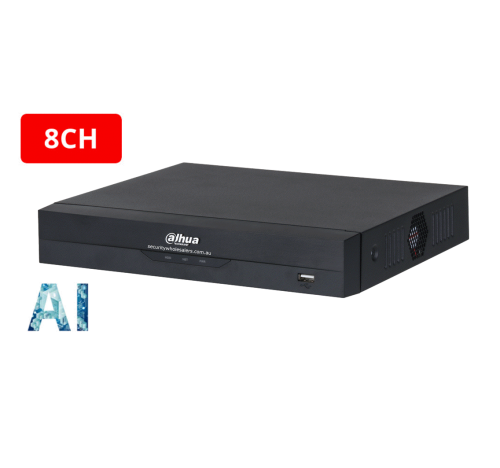
- Dahua NVRs - Notification logic often depends on the recorder path as much as the camera.
- Dahua CCTV cameras and kits - Useful if the notification problem leads back to the camera or event setup.
Sources and Further Reading
Step 1: Record the exact starting condition
Before changing Dahua CCTV Buying Guide, reproduce one clear test and write down the affected device, channel or user, the exact error wording, and the last time it worked.
- Photograph the current status or error.
- Record the exact model and firmware or app version.
- Note what changed immediately before the fault.
- Protect recordings, account ownership and the current configuration.
Step 2: Follow the local path described above
Use the recorder, controller or device screen named in this guide before treating the phone app as the cause. Record the status you find before editing it.
- Start at the local device where possible.
- Use the exact channel, door, zone or user involved.
- Compare it with one working equivalent.
- Change one setting at a time.
Step 3: Correct the proven layer only
Keep power, cabling, storage, network, account and app checks separate. Correct only the layer that failed the controlled comparison.
- Resolve physical power or cabling before software.
- Prove local operation before remote access.
- Keep owner and shared-user permissions separate.
- Avoid reset, format or unbind options unless a backup and recovery plan exist.
Step 4: Repeat the original test and document it
Repeat the same test, then verify any local and remote outcomes separately. A saved setting or online icon is not enough on its own.
- Record the successful test time.
- Check the expected log, playback or hardware response.
- Restart only when it is a safe and relevant proof.
- Save the final screenshot with the site handover record.
Troubleshooting table
| Symptom | What to check | What to do next |
|---|---|---|
| The local device also fails | Power, cable, storage or local configuration | Keep the test local and resolve the first failed layer before changing app or cloud settings. |
| Local operation works but the app fails | Ownership, sharing permission, cloud status or remote network | Keep the proven local setup and compare owner versus shared-user access on mobile data. |
| Only one channel, zone, door or user fails | Item-specific schedule, permission, wiring or assignment | Compare it side by side with one working item and change only the meaningful difference. |
| The fault started after another change | Router, password, firmware, account, power or configuration change | Document the last known working state and reverse only the relevant change where safe. |
| The fault is intermittent | Exact time, logs, signal, load, power and environmental pattern | Capture failure times and screenshots so support can correlate the event instead of guessing. |
When to contact support
Contact SecurityWholesalers support when the local result, exact model, firmware or app version and one controlled test are documented but the fault remains. Send the order number if available, screenshots, exact failure time and the checks already completed.
Before you start
Record the exact model, version, error wording, affected item and last known working time. Photograph the current state and protect recordings, configuration and account ownership before making changes.
Common mistakes
- Changing several unrelated settings before repeating the original test.
- Skipping the local device check and relying only on an app symptom.
- Resetting, formatting or unbinding equipment without a backup and ownership record.
- Escalating without the exact model, version, error text and test time.
Compare one failing path with one working path
Situation: One device, channel or user failed while another comparable item still worked.
Solution used: The two paths were compared at the local device first, one meaningful difference was corrected, and the original test was repeated.
Why this was chosen: The comparison isolated the affected layer without disturbing the rest of the system.
Installation notes: The final status, screenshot and test time were added to the handover record.
Related support guides
- All Technical Support Guides - Find the matching brand, app, recording, network, alarm, intercom or access-control guide.
Related buying guides
- SecurityWholesalers Buying Guides - Check compatibility and system-design guidance.
- Full Store Directory - Find the relevant product family.
Frequently asked questions
-
Why are my Dahua notifications not working?
Usually because of push linkage, schedule settings, phone permissions, or the device not being properly online for app delivery.
-
Can the camera still be recording even if notifications fail?
Yes. Recording and push delivery are related but not identical functions.
-
Why do notifications fail after changing phones?
Often because DMSS permissions, battery restrictions, or app background behaviour changed on the new device.
-
Should I test motion, SMD, or another event type?
Test the exact event type the system is actually configured to use. Many notification faults are really test-method faults.
-
Can the NVR cause notification problems as well as the camera?
Yes. On recorder-based systems the event path, online state, and push linkage can depend heavily on the NVR configuration.
-
Which related page helps next?
Usually the DMSS troubleshooting page if the wider remote-view path is unstable, or the camera-not-showing page if the device itself is disappearing.
-
What should I record before changing any settings?
For Dahua CCTV Buying Guide, record the exact model, firmware if known, current status, precise error wording, screenshots and the last known working condition. Change one item at a time.
-
Should I factory-reset the equipment while troubleshooting?
Not as an early step. A reset can erase network, recording, user, account or integration settings. Use it only with a configuration backup, known credentials and a model-specific recovery plan.
Related Pages
Dahua DMSS Setup and Troubleshooting
Use a structured checklist for Dahua DMSS setup and the common faults that stop it working properly.
Dahua Camera Not Showing on NVR
Work through a Dahua camera discovery fault in the right order before replacing hardware.
How to Choose a Dahua NVR
Choose the Dahua recorder path properly before locking in the camera mix.
Dahua CCTV Buying Guide
Start here to decide which Dahua branch matters before diving into camera, PTZ, NVR, or use-case pages.