














Support
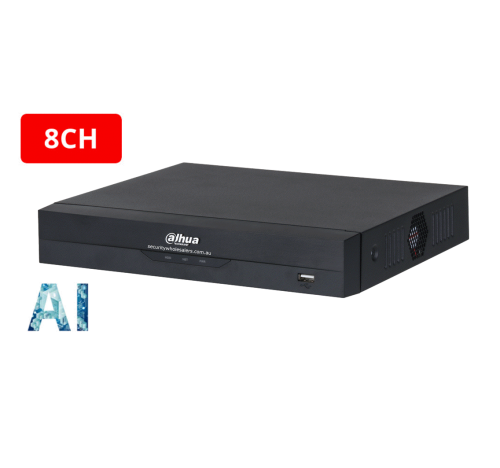
Dahua Camera Not Showing on NVR
Troubleshooting
The right order to check the problem
- Confirm the camera is powered and physically linked.
- Confirm whether the camera is plugged directly into a PoE NVR port or arriving through a switch.
- Check whether the NVR can see the device but cannot add it, or cannot see it at all.
- Check camera initialisation, IP addressing, and credentials before assuming the camera is faulty.
Most common causes
| Symptom | Likely cause | What to check first |
|---|---|---|
| No link, no image, no device found | Power or cabling problem | PoE port, cable, connector, and link lights |
| Device appears but will not add | Credential mismatch or initialisation issue | Username, password, and whether the camera has been initialised already |
| Camera works directly but not on NVR | IP or network-path issue | Subnet, DHCP/static settings, and whether the camera is on the expected network side |
| Intermittent camera loss | PoE budget, bad termination, or unstable switch path | PoE load, cable quality, and whether the fault follows a port or cable |
Sample scenarios
Example: a new warehouse camera is plugged into a spare PoE NVR port but never appears. The camera proves healthy on a local injector. The actual issue is a damaged termination on the in-wall Cat6 run, not the camera or NVR.
Example: a shop owner replaces one damaged turret with a new Dahua camera and the NVR shows the device but marks it invalid. The camera was initialised with a different password during setup, so the recorder cannot authenticate it until the credentials are corrected.
What to be careful with
- Do not reset a working camera unless you understand the credential impact.
- Do not assume ONVIF or third-party discovery is the same as a native Dahua add process.
- Do not overlook PoE budget or switch health on larger sites.
- Do not swap recorders before proving the camera and cable path.
Relevant SecurityWholesalers Categories and Products
These categories are relevant because this fault usually involves the relationship between the camera, the NVR, and the PoE path rather than one product in isolation.
- Dahua NVRs - The recorder category most directly involved in camera-add and discovery faults.
- Dahua CCTV cameras and kits - Useful if the fault leads to replacing a camera only after the real cause is proven.
Sources and Further Reading
Step 1: Record the exact starting condition
Before changing Dahua CCTV Buying Guide, reproduce one clear test and write down the affected device, channel or user, the exact error wording, and the last time it worked.
- Photograph the current status or error.
- Record the exact model and firmware or app version.
- Note what changed immediately before the fault.
- Protect recordings, account ownership and the current configuration.
Step 2: Follow the local path described above
Use the recorder, controller or device screen named in this guide before treating the phone app as the cause. Record the status you find before editing it.
- Start at the local device where possible.
- Use the exact channel, door, zone or user involved.
- Compare it with one working equivalent.
- Change one setting at a time.
Step 3: Correct the proven layer only
Keep power, cabling, storage, network, account and app checks separate. Correct only the layer that failed the controlled comparison.
- Resolve physical power or cabling before software.
- Prove local operation before remote access.
- Keep owner and shared-user permissions separate.
- Avoid reset, format or unbind options unless a backup and recovery plan exist.
Step 4: Repeat the original test and document it
Repeat the same test, then verify any local and remote outcomes separately. A saved setting or online icon is not enough on its own.
- Record the successful test time.
- Check the expected log, playback or hardware response.
- Restart only when it is a safe and relevant proof.
- Save the final screenshot with the site handover record.
Troubleshooting table
| Symptom | What to check | What to do next |
|---|---|---|
| The local device also fails | Power, cable, storage or local configuration | Keep the test local and resolve the first failed layer before changing app or cloud settings. |
| Local operation works but the app fails | Ownership, sharing permission, cloud status or remote network | Keep the proven local setup and compare owner versus shared-user access on mobile data. |
| Only one channel, zone, door or user fails | Item-specific schedule, permission, wiring or assignment | Compare it side by side with one working item and change only the meaningful difference. |
| The fault started after another change | Router, password, firmware, account, power or configuration change | Document the last known working state and reverse only the relevant change where safe. |
| The fault is intermittent | Exact time, logs, signal, load, power and environmental pattern | Capture failure times and screenshots so support can correlate the event instead of guessing. |
When to contact support
Contact SecurityWholesalers support when the local result, exact model, firmware or app version and one controlled test are documented but the fault remains. Send the order number if available, screenshots, exact failure time and the checks already completed.
Before you start
Record the exact model, version, error wording, affected item and last known working time. Photograph the current state and protect recordings, configuration and account ownership before making changes.
Common mistakes
- Changing several unrelated settings before repeating the original test.
- Skipping the local device check and relying only on an app symptom.
- Resetting, formatting or unbinding equipment without a backup and ownership record.
- Escalating without the exact model, version, error text and test time.
Compare one failing path with one working path
Situation: One device, channel or user failed while another comparable item still worked.
Solution used: The two paths were compared at the local device first, one meaningful difference was corrected, and the original test was repeated.
Why this was chosen: The comparison isolated the affected layer without disturbing the rest of the system.
Installation notes: The final status, screenshot and test time were added to the handover record.
Related support guides
- All Technical Support Guides - Find the matching brand, app, recording, network, alarm, intercom or access-control guide.
Related buying guides
- SecurityWholesalers Buying Guides - Check compatibility and system-design guidance.
- Full Store Directory - Find the relevant product family.
Frequently asked questions
-
Why is my Dahua camera not showing on the NVR?
Usually because of power, PoE, cable termination, IP discovery, or credential mismatch rather than an immediate hardware failure.
-
Can a Dahua camera be healthy but still not appear on the NVR?
Yes. The camera can be fine while the fault sits in the cable, PoE port, IP path, or login credentials.
-
Should I factory-reset the camera first?
Usually not as the first step. It is better to confirm power, link, discovery, and credentials before resetting anything.
-
Does it matter whether the camera is on a PoE NVR port or a switch?
Yes. That changes how discovery, addressing, and troubleshooting should be approached.
-
Can bad credentials stop the NVR from adding the camera?
Yes. The NVR may see the device but still fail to add it if the camera credentials do not match.
-
Which related page helps next?
Usually the DMSS troubleshooting page if the device is recording locally but remote view is still the problem.
-
What should I record before changing any settings?
For Dahua CCTV Buying Guide, record the exact model, firmware if known, current status, precise error wording, screenshots and the last known working condition. Change one item at a time.
-
Should I factory-reset the equipment while troubleshooting?
Not as an early step. A reset can erase network, recording, user, account or integration settings. Use it only with a configuration backup, known credentials and a model-specific recovery plan.
Related Pages
Dahua DMSS Setup and Troubleshooting
Use a structured checklist for Dahua DMSS setup and the common faults that stop it working properly.
How to Choose a Dahua NVR
Choose the Dahua recorder path properly before locking in the camera mix.
Dahua CCTV Buying Guide
Start here to decide which Dahua branch matters before diving into camera, PTZ, NVR, or use-case pages.
Dahua Notifications Not Working
Troubleshoot Dahua push notifications in the right order before blaming the camera.