Hikvision IP Video Intercom Door Station | 4MP Ultra-Wide Viewing | Dual Lock Control | Bluetooth & Card Access | PoE Support | Weatherproof Design
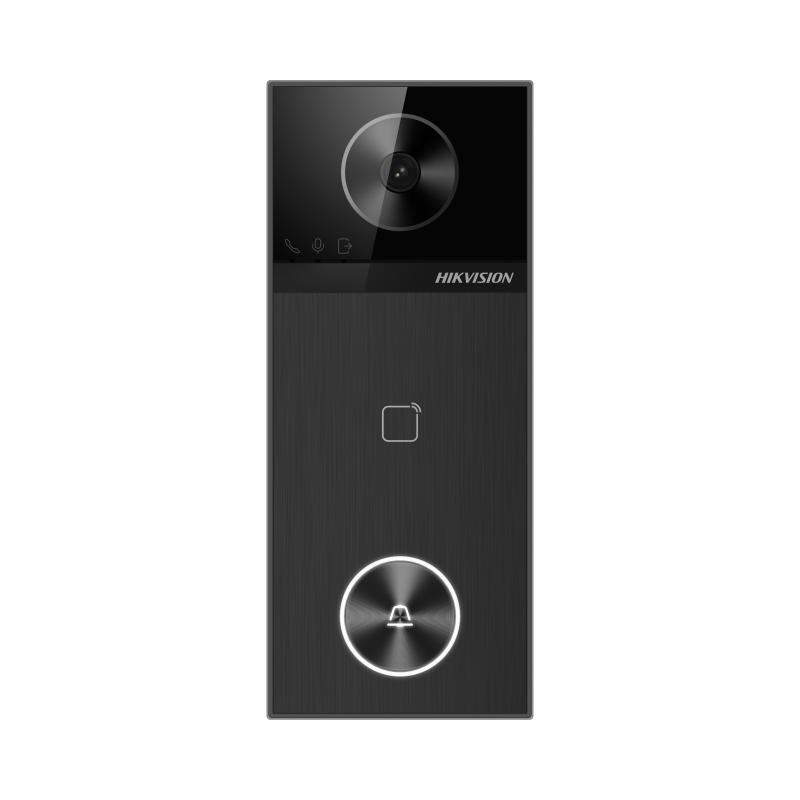
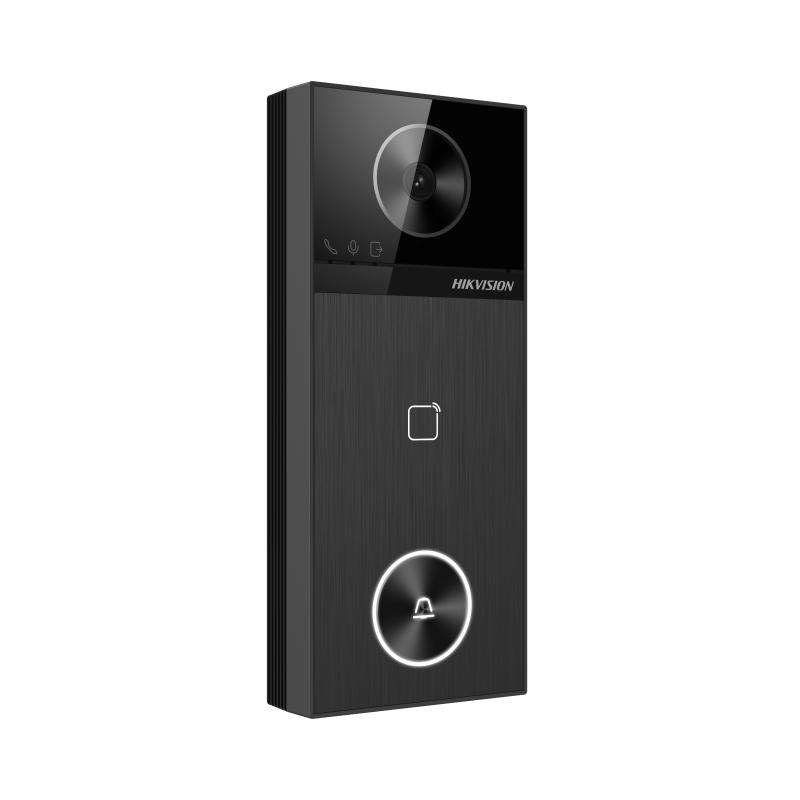
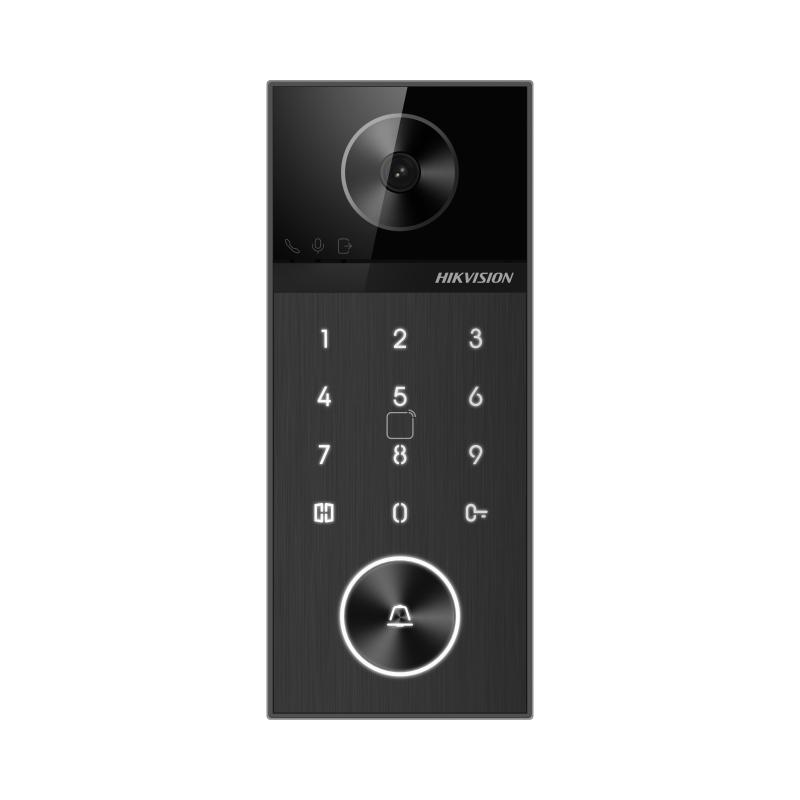
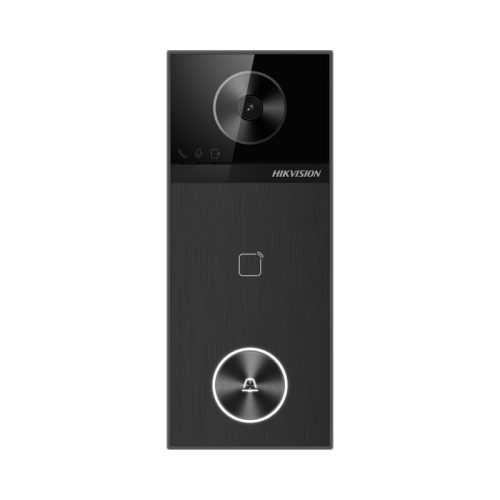
The DS-KV6114-WBE1 is a premium Hikvision IP video intercom door station designed for homes, offices and light commercial entry control where clear visitor identification and flexible access are needed. It combines 4MP ultra-wide viewing, dual relay outputs, Bluetooth and card access, plus PoE support for streamlined installation. Its weatherproof design supports reliable outdoor performance while helping manage secure entry across single-door or dual-lock applications.
Key Features
4MP Ultra-Wide Viewing: Provides clear visitor identification with a wider field of view at the entry point.
Dual Lock Control: Supports two relay outputs for managing two separate locks or access points.
Bluetooth Access: Enables convenient mobile-based access control where supported.
Card Access: Allows authorised users to unlock the door using compatible access cards.
PoE Support: Simplifies installation by carrying power and data through a single network cable.
Weatherproof Design: Built for reliable use in exposed entry environments.
The Hikvision DS-KV6114-WBE1 is part of the Pro Series IP Video Intercom range, engineered for modern home and villa entry systems. It combines high-definition imaging, intelligent access control, and flexible connectivity options in one durable and elegant unit.
4MP (2688×1520) high-resolution video for clear visitor identification
Ultra-wide viewing angle (approx. 150° horizontal) to capture the full doorway area
Dual lock control via two independent relays (30V DC, 2A max each)
Multiple unlocking methods: Card access, Bluetooth, PIN (if used with indoor station), and mobile app
Built-in microphone and loudspeaker with noise suppression and echo cancellation
Supports PoE (IEEE 802.3at) or 12V DC power
IP65 weather-rated for outdoor installations
Onboard microSD/TF card slot (up to 128GB) for local recording
Smart detection features including sound classification (glass breaking, scream, crying)
What’s in the Box
1 × DS-KV6114-WBE1 Door Station
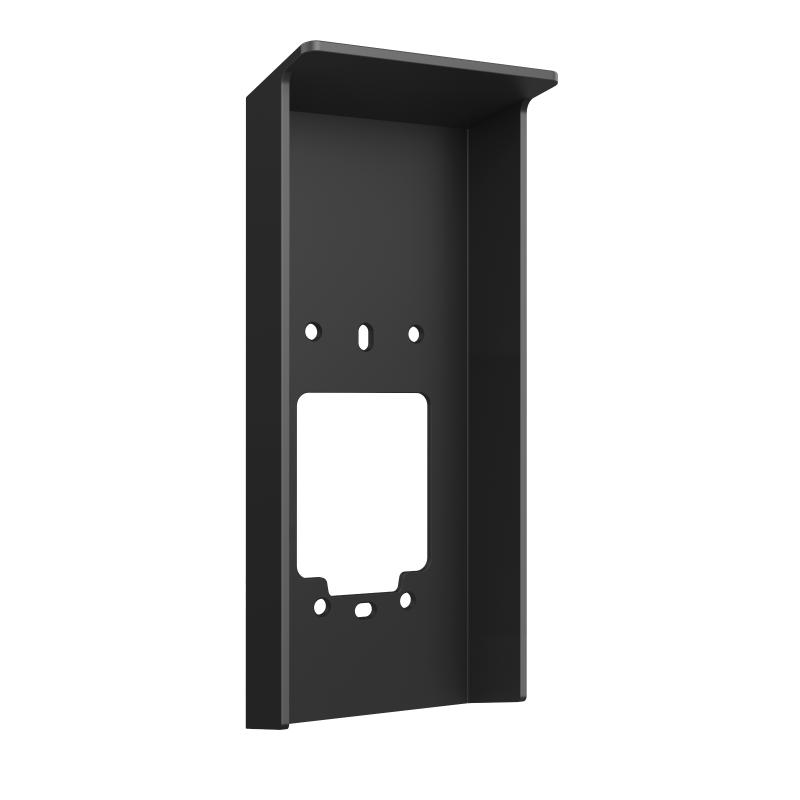
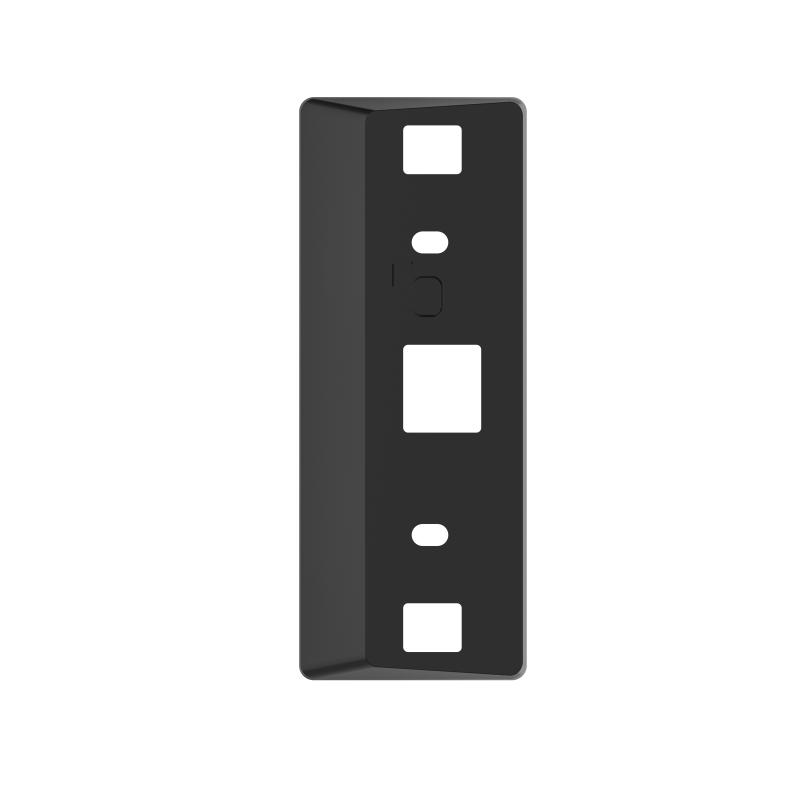
Mounting bracket and backplate
Installation screws and wall plugs
Rubber grommets and weather seal components
Quick installation guide and warranty information
Specifications
Category
Details
Camera Resolution
4MP (2688 × 1520) main stream
Viewing Angle
Approx. 150° horizontal, 75° vertical
Illumination
IR up to approx. 3 metres
Video Compression
H.264, H.265, MJPEG
Audio
Built-in mic and speaker, noise and echo reduction
Network Interface
RJ45 10/100 Mbps; Wi-Fi & Bluetooth supported
Lock Control
2 × relay outputs (Max 30V DC, 2A)
Card Support
MIFARE 13.56 MHz cards
Storage
MicroSD/TF card up to 128GB
Protection Rating
IP65 outdoor rated
Operating Temperature
−40°C to +60°C
Power Supply
PoE (IEEE 802.3at) or 12V DC 1.2A
Device Dimensions
164 mm × 69 mm × 24.7 mm
Note: Specifications are based on manufacturer test conditions. Real-world results may vary depending on installation environment.
Warranty & Support
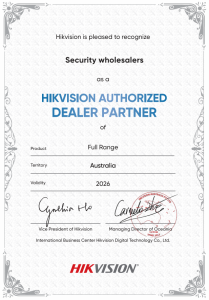
Supplied via authorised Hikvision channels in Australia
Warranty terms comply with Australian region-coded stock
Firmware updates available from Hikvision’s official firmware library
Recommended to update firmware for better performance and security
Use Case Scenarios
• Residential Front Entrance Ideal for front doors and gates, allowing remote unlock, visitor video, and two-lock control (e.g., front door + gate).
• Townhouses & Duplexes Great for individual villa or townhouse entry points requiring reliable visitor video, door release and multi-access options.
• Small Commercial Offices Perfect for back-door entries, staff entrances or delivery points where reliable access control and clear video is required.
• Outdoor or Exposed Installations IP65 rating and wide temperature tolerance allow installation in harsh Australian weather conditions including sun, rain and dust.
CABLING ARRANGEMENT
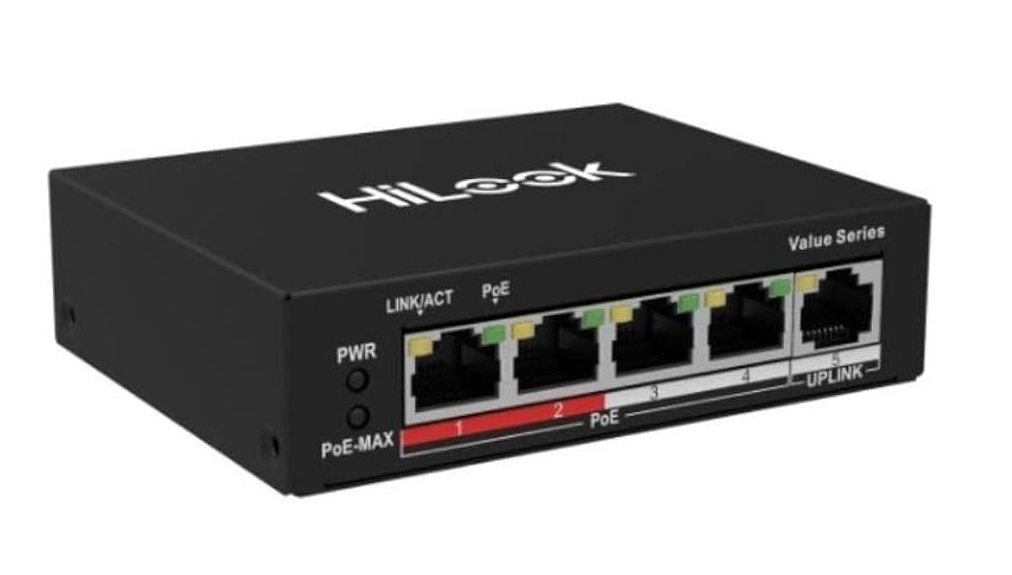
Door station → Cat6 → PoE switch → Cat6→ modem/router LAN port
Below is the setup process for your Hikvision DS-KV6114-WBE1, assuming you want it to ring your phone through Hik-Connect.
Your wiring is correct: door station → Cat6 → PoE switch → modem/router LAN port.
Menu names can vary slightly with firmware.
1. Connect your computer to the same network
Leave the door station connected to a PoE port on the switch.
Make sure the switch connects to a LAN port on your modem/router.
Connect a Windows computer to the same router, either by Ethernet or your normal home Wi-Fi.
Avoid using a guest Wi-Fi network during setup.
2. Install HiTools Delivery
Download HiTools Delivery
Install and open it.
Allow access through Windows Firewall if prompted.
Open Search / Device Discovery and click Refresh.
Locate DS-KV6114-WBE1 in the device list.
HiTools Delivery supports device discovery, activation and network configuration. Hikvision Global
3. Activate the door station
Select the door station.
If its status is Inactive / Unactivated, select Activate.
Create and confirm a strong administrator password.
Save the password somewhere secure.
Complete any password recovery options offered.
The device username is normally admin. This device password is separate from your Hik-Connect account password.
If the device already shows Active, use its existing administrator password. You cannot create a replacement password through activation.
4. Set its network address
Select the door station in HiTools.
Open its Network Configuration / Modify Network Parameters.
Enable DHCP so your router assigns the address.
Enter the administrator password when requested and apply.
Refresh the device list.
Note the door station’s new IP address.
For a stable address, you can later create a DHCP reservation for the door station in your router.
5. Open the door station’s settings
Open Chrome or Edge on your computer.
Enter the IP address shown in HiTools into the browser address bar, for example: http://192.168.1.120
Log in using:
Username:admin
Password: the password created during activation.
Complete the setup wizard if displayed.
Set the correct date, time and time zone for your location.
Use the actual address shown in HiTools, rather than the example above.
6. Enable Hik-Connect
Open Configuration → Network.
Look for Platform Access, Hik-Connect, or Advanced Settings → Platform Access.
Enable the service and select Hik-Connect if a platform choice appears.
Accept the service terms if prompted.
Create or note the verification code / encryption password.
Click Save.
Check that the platform status changes to Online.
Hikvision notes that the exact menu layout varies by product and firmware
If it stays Offline: check the gateway and DNS settings under Network. With DHCP enabled, these should normally come from your router. Hikvision also recommends checking DNS and internet connectivity when troubleshooting an offline connection.
7. Add it to your phone
Install Hik-Connect for End User using the official Hikvision download page.
Create an account, selecting Australia as your region, and log in.
Tap + → Scan QR Code.
Scan the Hik-Connect QR code displayed in the door station’s Platform Access page. If a label has several codes, use the one identified for Hik-Connect.
Follow the prompts to add the device.
Enter the verification code from Step 6 if requested.
Give the device a name, such as Front Door.
If scanning fails, use Manual Adding and enter the device serial number. Hikvision supports adding devices to an account using their serial number.
8. Enable calls and notifications
Allow Hik-Connect access to your phone’s microphone and notifications.
Enable the device’s call / notification settings in Hik-Connect.
On Android, allow background operation and remove battery restrictions for Hik-Connect.
Open live view and confirm you can see the camera.
Press the physical call button and check whether your phone rings.
Answer and test audio in both directions.
Turn your phone’s Wi-Fi off and repeat the test over mobile data.
If live view works but the call button does not ring your phone, the call destination or app call settings need checking. Do not assume adding live view has completed the intercom setup.
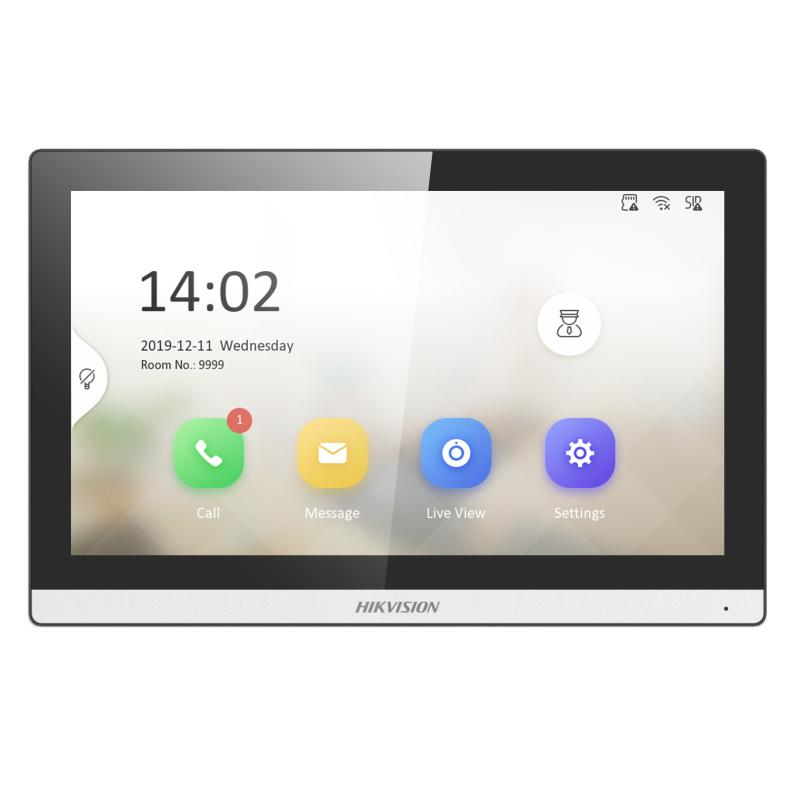
9. If you have an indoor monitor
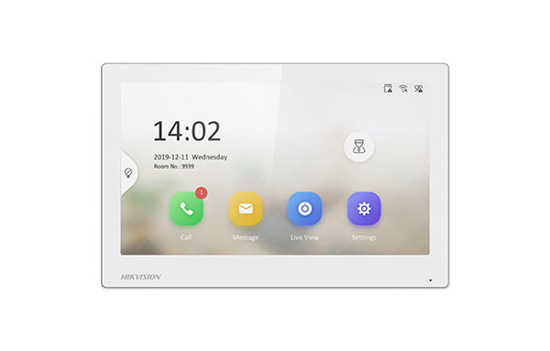
The monitor must also be activated, connected to the network and linked to the door station. The exact steps depend on its model, so provide the monitor’s model number before configuring that part.
An electric lock or gate also requires its own relay wiring and configuration. The Cat6 connection alone does not connect the door station to the lock.
All Hikvision IP cameras and recording devices (NVRs/DVRs) are covered by a
3-year back-to-base manufacturer warranty and authorised dealer partner support.
Note: Disk drives are limited to a 3-year warranty.
Our warranty is limited to the replacement of faulty items or parts
and does not include damage caused by incorrect fitting of parts or accessories.
(a) Australian Consumer Law (ACL)
Certain legislation, including the Australian Consumer Law (ACL) in the Competition and Consumer Act 2010 (Cth), and similar consumer protection
laws and regulations may confer you with rights, warranties, guarantees, and remedies
relating to the provision of goods or services to you by us via the Site which cannot
be excluded, restricted, or modified. Our liability is governed solely by the ACL and
these Terms.
(b) Goods
If you are a consumer as defined in the ACL, the following notice applies to you:
“Our goods come with warranties and guarantees that cannot be excluded under the
Australian Consumer Law (Consumer Guarantees). You are entitled to a replacement or
a refund for a major failure and for compensation for any other reasonably foreseeable
loss or damage. You are also entitled to have the goods repaired or replaced if the
goods fail to be of acceptable quality and the failure does not amount to a major
failure.”
(c) Our Warranties
To the extent permitted by law, we exclude all express and implied warranties,
and all material and work is provided to you without warranties of any kind,
either express or implied. We expressly disclaim all warranties including but
not limited to implied warranties of merchantability and fitness for a particular
purpose.
(d) Manufacturer Warranties
Certain products, including particular models of IP security cameras and DVR/NVR
equipment, may come with a manufacturer’s warranty. The manufacturer’s warranty is
in addition to but may overlap with any rights and remedies you may have under
applicable law, including any Consumer Guarantees. If you are not considered a
“consumer” within the meaning of the ACL, the manufacturer’s warranty may be your
sole remedy. Many manufacturers’ warranties do not apply in a business or commercial
setting. Please contact the manufacturer if you would like to make a claim under
the manufacturer’s warranty.
(e) Repair, Replacement, or a Refund
If you wish to seek repair, replacement, or a refund for a product, please
contact us and we will explain the requirements to you. This may include you
providing evidence of the faulty product to us.
(f) Refund
You are not entitled to a refund for change of mind. If you are entitled to a
refund, we will only provide it once evidence of the faulty product is received
by us, or once we have received the product at our warehouse and inspected it
to assess whether it is eligible for a refund under these Terms. Any refund we
make will be by the same payment method used to purchase the product.
(g) Installed Products
Subject to this clause, we will not accept for return any product that has been
used, connected, installed, attempted to be connected or installed, or if your
product is custom-made or is a special buy product.
(h) Packaging
You must adequately package any product you are returning for our collection
to ensure that it is not damaged during return delivery to our warehouse. You
are also responsible for arranging the return delivery and the costs involved.
(i) Duty of Care
You have a duty of care for the product while it is in your possession. If
you damage products and then subsequently return them, you may be liable to pay
to repair the product to its original condition. In these circumstances, where
a repair is not economically viable, no refund will be made.
Everything you need to choose the right intercom and access control system for your property.
Why Intercoms and Access Control Matter
Whether you’re securing a home, apartment complex, office, or warehouse, controlling who enters your property is crucial. Intercom and access control systems add a vital layer of security, convenience, and communication. From simple audio intercoms to smart video-based systems with facial recognition or mobile access, these tools ensure only authorised individuals can access your premises — while allowing seamless communication with visitors.
With so many technologies available — 2-wire systems, IP-based units, keypads, proximity cards, facial recognition, mobile unlocking, and more — it’s essential to understand what best suits your space and needs.
Top Brands and Recommendations
Hikvision Intercoms
Hikvision IP Intercom Kits – Modern systems with HD video, mobile app access via Hik-Connect, and compatibility with door stations and monitors.
Hikvision 2-Wire Intercom Kits – Easy to install in retrofitted homes or apartments without rewiring. Ideal for replacements.
Hikvision Access Control Systems – Full range of card readers, keypads, biometric terminals and facial recognition terminals for advanced property control.
Dahua Intercoms
Dahua IP Intercom Systems – Ideal for homes and businesses, offering modular door stations, touchscreen monitors, and app-based control.
Aiphone Intercoms
Aiphone Video Intercoms – Known for reliability and compact design, popular in apartments and residential units.
Akuvox Intercoms
Akuvox Smart Intercom Systems – Advanced IP intercoms with cloud management, facial recognition, QR code access, and seamless smart home integration.
Key Considerations When Choosing
Wiring Type: Opt for 2-wire systems for easy upgrades, or full IP systems for new builds and advanced integration.
Video vs Audio: Video intercoms enhance visitor verification and record footage.
Remote Access: Choose systems that support mobile apps like Hik-Connect or DMSS for alerts and remote unlocking.
Integration: Look for systems compatible with CCTV, smart locks, or NVRs.
Building Type: Choose modular and multi-button door stations for apartments, and simpler units for homes.
Ideal Use Cases
Homes: IP video intercoms with mobile app access, gate unlocking, and recording.
Apartments: Multi-tenant intercoms with RFID card access and internal communication.
Offices/Warehouses: Access control terminals with facial recognition, QR, and mobile credentials.
Top 5 FAQs
Can I connect my intercom to my mobile phone? Yes. Most modern IP intercoms from Hikvision, Dahua, and Akuvox support mobile apps like Hik-Connect or DMSS.
What’s the difference between 2-wire and IP? 2-wire is ideal for retrofits. IP offers better integration, scalability, and features.
Can these systems unlock gates or doors remotely? Yes. With compatible electronic locks and relays, you can unlock gates/doors from your monitor or app.
Do I need professional installation? We recommend it for access control setups and apartment systems to ensure compliance and wiring standards.
What happens during power outages? Most systems require backup power or UPS. Some access terminals support battery packs or PoE UPS solutions.
Warranty and Support
All intercoms and access control products on Security Wholesalers come with manufacturer warranties (typically 2-3 years). As an authorised reseller, we also provide post-sale technical support and assistance with firmware updates and integration questions.
We understand it can be confusing to choose the right solution. Whether you’re managing a small home, a growing business, or a multi-unit property, our expert support team is here to help. Get in touch for personalised recommendations and professional installation advice tailored to your needs.
Your Shopping Cart will be saved and you'll be given a link. You, or anyone with the link, can use it to retrieve your Cart at any time.
Back
Save & Share Cart
Your Shopping Cart will be saved with Product pictures and information, and Cart Totals. Then send it to yourself, or a friend, with a link to retrieve it at any time.
Your cart email sent successfully :)
Hikvision DS-KV6114-WBE1 Villa Door Station 4MP IP Video Intercom Dual Lock Control and Bluetooth