

















Support
How to Reset an AXIS Camera Password
Password and Account Recovery
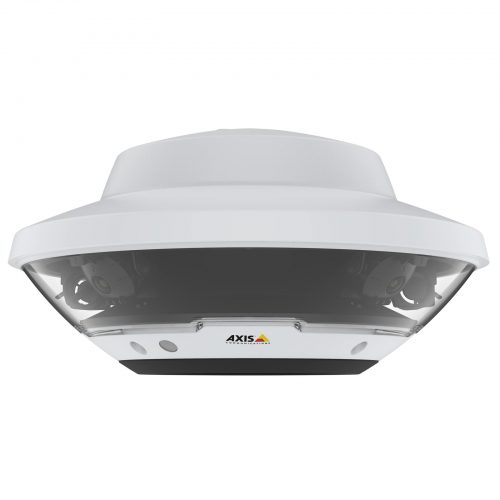
Summary
Use this guide when an AXIS camera password has been lost, changed, or inherited from another installer and the current legitimate owner needs a safe recovery path.
Applies to
- AXIS IP cameras
- Legitimate owner recommissioning jobs
- Cameras being moved between sites or installers
Difficulty and time
Difficulty: Moderate to advanced
Estimated time: 20 minutes to several business hours depending on the access path
What you will need
- Camera model and serial number
- Local network access to the camera
- Any known current credentials
- Proof of ownership or order history where relevant
What this guide covers
- Check whether any access still exists
- Decide between recovery and recommissioning
- Use the supported reset path
- Re-add the camera and test it
Password jobs on AXIS cameras should be treated carefully because the goal is not to bypass the system. The goal is to help the legitimate owner recover or recommission the camera safely.
In many real jobs the camera is either still reachable locally with partial knowledge of the credentials, or it needs a proper reset and recommissioning workflow tied to the legitimate owner and the current site documentation.
Before you start
Start by working out whether this is a credential clean-up job or a full recommissioning job.
- Check whether the camera is still visible on the network.
- Record the model and serial number.
- Check whether any valid user credential is still known.
- Do not keep guessing passwords repeatedly.
Treat password recovery as a legitimate owner process
Do not use unofficial internet tricks or attempt to bypass ownership controls.
If the camera needs a full reset and recommissioning path, document the ownership and current site details before making the change.
What usually causes this
- The camera was inherited from another installer or site.
- The original admin credentials were never documented properly.
- The site changed platforms and no one updated the camera records.
- Support is harder because the ownership and recommissioning path was never clarified.
Step 1: Check whether any legitimate access still exists
The cleanest job is usually one where a valid user still exists and the credentials can be cleaned up from inside the camera rather than resetting blindly.
- Test any known current credentials carefully.
- Check whether the camera is still visible on the network.
- If another valid admin exists, use that clean path first.
- Do not guess until the camera becomes difficult to manage.
Step 2: Decide whether the job is recovery or full recommissioning
If no valid credential remains, the safer answer may be a supported reset and recommissioning workflow rather than trying to salvage a forgotten login.
- Confirm the owner and site records.
- Decide whether the camera can be safely reset.
- Consider whether Camera Station or another system depends on the current identity.
- Plan the recommissioning path before changing the camera.
Step 3: Run the supported reset path where required
Use the legitimate supported AXIS reset or recommissioning method for the specific camera and site situation.
- Record the model and serial before the change.
- Follow the supported reset method only.
- Recommission the camera onto the current network cleanly.
- Create and document the new credentials properly.
Step 4: Re-add the camera and test the site outcome
If the camera was part of a larger system, prove the final result once the new credentials are in place.
- Confirm the camera returns to the correct network.
- Re-add it to Camera Station or the relevant platform if needed.
- Test live view and recording.
- Update the site documentation so the same problem is less likely later.
Inherited camera from another installer
Situation: A small business took over an AXIS camera, but the previous installer had left no usable admin credentials.
Solution used: The camera was treated as a legitimate recommissioning job rather than a guessing exercise, then reset and re-added with new documented credentials.
Why this was chosen: That gave the owner a clean supportable outcome instead of another undocumented login problem.
Installation notes: The new credentials and serial were recorded at handover.
Common mistakes
- Repeatedly guessing passwords.
- Resetting the camera without documenting the model and ownership.
- Forgetting that the camera may need to be re-added into Camera Station afterwards.
- Leaving the new credentials undocumented after the reset.
Troubleshooting table
| Symptom | What to check | What to do next |
|---|---|---|
| Known password still fails | Wrong credential, keyboard issue or another account path | Confirm the exact credential and whether another valid user exists. |
| Camera visible but no valid login remains | Recommissioning or reset path needed | Plan the legitimate reset workflow rather than guessing. |
| Camera works after reset but not in the VMS | Re-add or credentials mismatch in the VMS | Update the platform with the new camera credentials. |
When to contact support
Contact SecurityWholesalers support when you are the legitimate owner or installer for the legitimate owner and the camera now needs a proper reset or recommissioning path.
Related support guides
- AXIS Camera Not Getting an IP Address - Useful if the camera is not even visible on the network.
- How to Add an AXIS Camera to AXIS Camera Station - Use this after recommissioning if the camera must go back into Camera Station.
Related buying guides
- AXIS Buying Guide - Broader AXIS planning guide.
Relevant product categories
- AXIS Communications CCTV - AXIS products category.
Still stuck?
Need help choosing or setting up a system? Contact SecurityWholesalers support with your order number, product model and a clear description of the issue.
Frequently asked questions
-
Can I reset an AXIS camera password myself?
If you are the legitimate owner or authorised installer, you can follow the supported reset or recommissioning path for that camera and site.
-
Should I keep guessing the password?
No. Repeated guessing usually makes the job messier rather than better.
-
What if the camera belonged to another installer or site?
Treat it as a recommissioning job and document the ownership and serial details properly.
-
Will the camera need to be re-added into Camera Station after reset?
Often yes, or at least the credentials in the VMS may need to be updated.
-
What should I document afterwards?
The model, serial number, new credentials and the final platform it was re-added to.
-
What should I record before changing any settings?
For How to Reset an AXIS Camera Password, record the exact model, firmware if known, current status, error wording, screenshots and the last known working condition. Change one item at a time so you can identify what actually helped.
-
Should I factory-reset the equipment while troubleshooting?
Not as an early step. A reset can erase network, recording, user, account or integration settings. Use it only when you have a configuration backup, known credentials and a model-specific recovery plan.
-
How do I confirm the problem is genuinely fixed?
Repeat the original test, then check the relevant local and remote paths separately. If the problem was intermittent, monitor through the conditions that previously caused it and record the successful result.