

















Support
How to Add an AXIS Camera to AXIS Camera Station
AXIS Camera Station Support
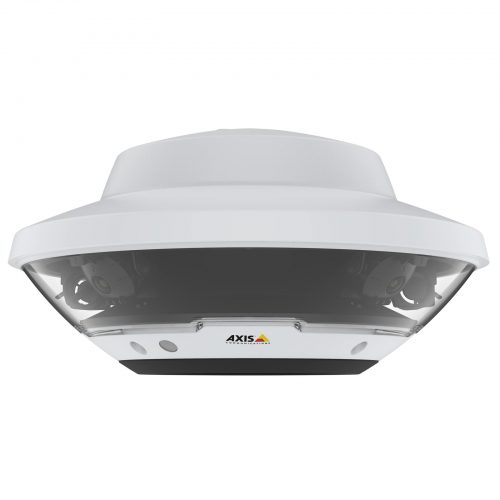
Summary
Use this guide when an AXIS camera needs to be brought into AXIS Camera Station or when the camera is visible on the network but still not behaving properly inside the VMS.
Applies to
- AXIS IP cameras
- AXIS Camera Station sites
- Single-camera and multi-camera AXIS commissioning jobs
Difficulty and time
Difficulty: Moderate
Estimated time: 20 to 40 minutes
What you will need
- Camera Station client or server access
- Camera admin credentials
- LAN access to the camera
- Known-good network path
What this guide covers
- Prove the camera on the LAN
- Confirm credentials and identity
- Add it into Camera Station
- Test recording before handover
This page is for the common AXIS support job where the camera is powered and on the network, but still needs to be added cleanly into AXIS Camera Station. The most common problems are the camera being on the wrong subnet, using the wrong credentials, or not being recorded after it is visible.
The right order is straightforward: prove the camera on the LAN first, confirm the camera identity and credentials second, add it into Camera Station third, then confirm live view and recording before the system is handed over.
Before you start
Treat this as a local network and VMS job first. Do not start at the mobile app or remote access layer.
- Confirm the camera powers up and links locally.
- Know whether the camera is using DHCP or a planned static IP.
- Check whether the camera has been commissioned before on another site.
- Confirm who owns the camera admin credentials.
Do not skip the recording test once the camera appears
A camera showing in Camera Station is not the same thing as a camera that is recording properly.
Always prove live view, time sync and archive behaviour before closing the job.
What usually causes this
- The camera is not really on the expected LAN path yet.
- The wrong credentials are being used on a previously commissioned camera.
- The camera was added to the VMS before the basic IP identity was proven.
- Recording was never tested after live view started working.
Step 1: Prove the camera on the LAN first
Start by confirming the camera has power, link and a valid IP path before you even look at Camera Station discovery.
- Use AXIS discovery tools or the supported network method to find the camera.
- Confirm the IP address and subnet.
- Check the camera clock if it has already been commissioned.
- If the camera is not discoverable yet, solve that first.
Step 2: Confirm credentials and camera identity
A reused camera or a camera commissioned by another installer can be healthy on the LAN but still fail to add cleanly because the credentials are wrong.
- Confirm the correct admin username and password.
- Check the model and serial number if the site has several similar devices.
- Do not keep guessing credentials until the job becomes messy.
- Record the working credentials in the site documentation.
Step 3: Add the camera into AXIS Camera Station
Once the camera is proven locally, use Camera Station to discover or add it through the supported workflow.
- Open the camera-add or device-add path in Camera Station.
- Choose the correct camera from the discovery list or add it by IP if needed.
- Enter the verified credentials carefully.
- Apply the configuration and confirm the camera lands in the correct site structure.
Step 4: Prove live view, recording and time
The commissioning job is not done when the camera shows a picture. Prove the archive path too.
- Open live view and confirm the picture is stable.
- Check the camera time and recording rule.
- Run a short test recording and play it back.
- Only then move to user access or remote-view handover.
Two-camera office add-on
Situation: An office added two AXIS cameras to an existing Camera Station server after a small renovation.
Solution used: The cameras were discovered locally first, their credentials were verified, and only then were they added into Camera Station and tested for recording.
Why this was chosen: That avoided wasting time on VMS settings when the real risk was reused camera identity and credential mismatch.
Installation notes: A short recording test was done before the cameras were handed over to staff.
Common mistakes
- Trying to add the camera before proving the LAN path.
- Forgetting that a reused camera may already have different credentials.
- Stopping once live view works and never checking recording.
- Leaving the camera on a confusing IP plan without documenting it.
Troubleshooting table
| Symptom | What to check | What to do next |
|---|---|---|
| Camera visible on LAN but not in Camera Station | Discovery, credentials or VMS path issue | Add by verified IP and recheck credentials. |
| Camera adds but no stable picture | Stream, network or camera issue | Check the camera stream locally and confirm network stability. |
| Live view works but no recorded clip | Recording rule or archive issue | Check Camera Station recording settings and run a controlled test clip. |
When to contact support
Contact SecurityWholesalers support when the AXIS camera is confirmed on the LAN and the credentials are known, but Camera Station still will not add or record it correctly.
Related support guides
- AXIS Camera Not Getting an IP Address - Use this first if the camera is still missing on the network.
- AXIS Camera Station Recording Not Working - Use this if live view works but archive behaviour does not.
- How to Export Footage from AXIS Camera Station - Use this once the camera is recording properly.
Related buying guides
- AXIS Buying Guide - Broader AXIS system-planning guide.
- How to Choose an AXIS Recorder - Useful where the wider recorder or appliance path is part of the job.
Relevant product categories
- AXIS Communications CCTV - AXIS products category.
- AXIS Network Video Recorders - AXIS recorders and appliances.
Still stuck?
Need help choosing or setting up a system? Contact SecurityWholesalers support with your order number, product model and a clear description of the issue.
Frequently asked questions
-
What should I check before adding an AXIS camera to Camera Station?
Power, LAN visibility, IP address and the correct admin credentials.
-
Should I add the camera before proving it on the network?
No. Prove the local network path first.
-
Why does the camera show on the LAN but not in Camera Station?
Usually because of discovery, credentials or site-structure issues inside the VMS.
-
Is live view enough to finish commissioning?
No. You should also prove recording and playback.
-
Can reused camera credentials cause problems?
Yes. A previously commissioned AXIS camera may not accept the credentials the current installer expects.
-
What should I record before changing any settings?
For How to Add an AXIS Camera to AXIS Camera Station, record the exact model, firmware if known, current status, error wording, screenshots and the last known working condition. Change one item at a time so you can identify what actually helped.
-
Should I factory-reset the equipment while troubleshooting?
Not as an early step. A reset can erase network, recording, user, account or integration settings. Use it only when you have a configuration backup, known credentials and a model-specific recovery plan.
-
How do I confirm the problem is genuinely fixed?
Repeat the original test, then check the relevant local and remote paths separately. If the problem was intermittent, monitor through the conditions that previously caused it and record the successful result.