















How to Reset Password on Hikvision Camera / NVR?
How to reset passwords on either an NVR or IP Camera?
The following quick guide by Hikvision takes you through the steps to do this.
IMPORTANT TO NOTE BEFORE STARTING:
This relies on emailing items to Hikvision tech support for their help to reset. Hikvision Tech support only operate Monday to Friday business hours. They can take 2 hours to reply, thus if you send it at around 3.30, you may not get a reply. In the time you are waiting need to keep SADP tool open and running.
TO RESET PASSWORD ON HIKVISION NVR (scroll down for resetting for cams)
> email us the XML file (not the CSV file) and Serial Number (*Full serial number on SADP) to us. We will be emailing this file to Hikvision for them to provide a reset file. NOTE – Hikvision is only open during business hours, so you must send it to us before say 3pm on a business day to allow ample time to reply.
- Hikvision is only open 9-5 Monday to Friday, thus please send it before 2pm on a weekday so you can get the reset code back on the same day.
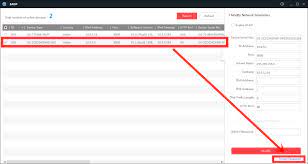
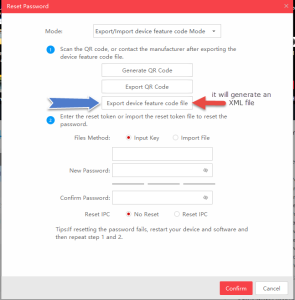
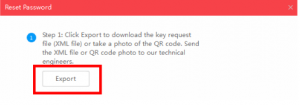
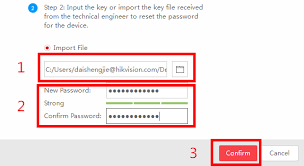
Hikvision_IPC_NVR_Password_Reset_Guide
RESET CAM PASSWORDS
CAMERAS – TO RESET PASSWORD ON HIKVISION CAMERAS CONNECTED TO NVR,
THINGS TO NOTE:
- only Australian region products can be reset
- Hikvision is only open 9-5 Monday to Friday, thus please send it before 2pm on a weekday so you can get the reset code back on the same day.
- Only if you purchased goods from us, can we reset it – if you bought it elsewhere, please speak to the reseller who sold you the product
- email the serial number / xml file to us at enquiries@securitywholesalers.com.au
ALTERNATIVE STEP FOR CAMERA IF YOU HAVE RESET BUTTON UNDER SD CARD SLOT:
- Ensure the camera is NOT POWERED. Hold the reset button.
- While the reset button is held, power it back up (connect the ethernet cable)
- Continue to hold the reset button down for say 30 seconds then let go of the button.
- this should now be reset.
IF YOU’D LIKE TO WATCH A VIDEO REGARDING THE SADP METHOD: