

















How to Reset Password on Hilook Camera / NVR? Leave a comment
If you have forgotten the password for your HiLook NVR, the reset process is usually completed using the SADP Tool on a Windows computer. HiLook is part of the Hikvision family, so the password reset process is very similar to Hikvision NVRs.
This guide is for customers who purchased their HiLook NVR from SecurityWholesalers.com.au.
Important Before You Start
Password reset files are time-sensitive. Once you export the reset file, you must keep the NVR powered on and connected to the network until the reset process is complete.
Do not turn off the NVR, disconnect the network cable, close SADP, or reboot the device while waiting for the reset file. If the NVR loses power or connection, the reset file may no longer work and the process will need to be restarted.
SecurityWholesalers’ existing Hikvision guide notes that the XML reset process requires the device to stay powered and connected, and that the XML file, not CSV file, is required for the reset request.
What You Need
You will need:
- A Windows PC or laptop
- The HiLook NVR connected to the same network as the PC
- The Hikvision / HiLook SADP Tool
- The NVR serial number shown in SADP
- The exported XML reset file from SADP
Download the SADP Tool from Hikvision’s HiTools/SADP support page. Your existing guide also points customers to the Hikvision HiTools page for SADP downloads.
Step-by-Step: Reset HiLook NVR Password Using SADP
Step 1 — Connect the NVR to the Network
Make sure the HiLook NVR is powered on and connected to your network.
Ideally:
- The NVR should be connected to your router or network switch.
- Your PC should be connected to the same router or network switch.
- Use a network cable where possible, rather than Wi-Fi, to reduce connection issues.
Step 2 — Install and Open SADP Tool
Install the SADP Tool on your computer.
Once installed, open SADP. It should automatically scan the network and display any Hikvision or HiLook devices it can detect.
Look for your HiLook NVR in the list.
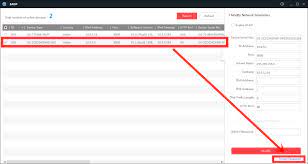
Step 3 — Select the HiLook NVR
Tick the box next to the HiLook NVR.
Check that the model and serial number match your device.
The full serial number shown in SADP is important. Please do not rely only on the short serial number printed on the box or sticker.
Step 4 — Click “Forgot Password”
With the NVR selected, click Forgot Password.
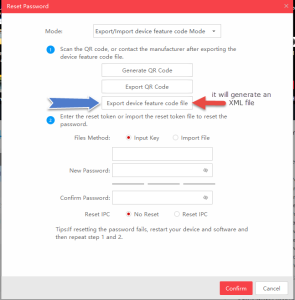
SADP will open a password reset window.
Depending on the firmware version, it may allow you to:
- Export an XML file, or
- Use a QR code / verification code method
For most HiLook NVR resets, the XML file method is the most common.
Step 5 — Export the XML File
Click Export and save the reset file to your computer.
Important: send the XML file, not the CSV file.
Your current Hikvision reset page specifically notes that customers must email the XML file, not the CSV file, along with the full serial number from SADP.
Step 6 — Email the XML File and Serial Number
Email the following to SecurityWholesalers:
To: enquiries@securitywholesalers.com.au
Subject: HiLook NVR Password Reset Request
Include:
- Your order number, if available
- Your name
- NVR model number
- Full serial number from SADP
- The exported XML reset file attached
Suggested email template:
Hi SecurityWholesalers,
I need help resetting the password on my HiLook NVR.
Order number:
NVR model:
Full serial number from SADP:I have attached the exported XML reset file from SADP.
The NVR is currently powered on and connected to the network.
Thank you.
Step 7 — Leave Everything Turned On
After exporting the XML file, leave the following running:
- HiLook NVR
- Router / network switch
- PC
- SADP Tool
Do not reboot or disconnect anything.
If the NVR turns off or disconnects, the returned reset file may fail and a new XML file will need to be generated.
Step 8 — Wait for the Reset File
SecurityWholesalers will submit the reset request where applicable.
For same-day processing, send the request during business hours. Your existing guide notes that Hikvision support operates Monday to Friday business hours and recommends sending reset requests before about 2pm on a weekday where possible.
Step 9 — Import the Reset File into SADP
Once you receive the reset file back:
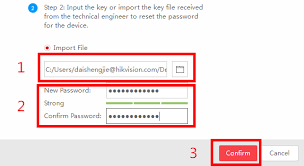
- Open SADP if it is not already open.
- Select the HiLook NVR.
- Click Forgot Password.
- Choose the option to Import File.
- Select the reset file that was emailed back to you.
- Enter a new password.
- Confirm the new password.
- Click Confirm.
Your new password should now be applied to the HiLook NVR.
Choosing a New Password
Use a strong password that you can safely store.
A good password should include:
- At least 8 characters
- Uppercase and lowercase letters
- Numbers
- A special character
Avoid simple passwords such as:
- admin12345
- password123
- 12345678
- your business name
After the Password Has Been Reset
Once the NVR password has been changed, you may also need to update the password in:
- HiLookVision app
- Hik-Connect app
- IVMS-4200 software
- Any connected cameras using the NVR password
- Any remote viewing setup
- Any saved browser login
If remote viewing stops working after the reset, remove the device from the app and add it again using the new password.
Common Problems
SADP Cannot Find the HiLook NVR
Check the following:
- The NVR is powered on.
- The network cable is connected.
- The PC is on the same network as the NVR.
- Temporarily disable VPN software.
- Temporarily disable firewall or antivirus network filtering.
- Try using a wired Ethernet connection instead of Wi-Fi.
- Restart SADP.
The Reset File Does Not Work
This usually happens if:
- The NVR was rebooted after the XML file was exported.
- The NVR lost network connection.
- SADP was closed.
- Too much time passed.
- The wrong file was sent.
- The CSV file was sent instead of the XML file.
If this happens, export a new XML file and repeat the process.
Can SecurityWholesalers Reset Any HiLook NVR?
Generally, password reset support is only available for products purchased from SecurityWholesalers.com.au and intended for the Australian market. Your existing guide notes that only Australian-region products can be reset, and customers who purchased elsewhere should contact the reseller who sold the product.
FAQ
Is HiLook the same as Hikvision?
HiLook is Hikvision’s value/economy CCTV range. The reset process is generally very similar and often uses the same SADP Tool.
Can I reset a HiLook NVR without SADP?
Usually, SADP is the easiest method. Some models or firmware versions may support QR code or security question reset options, but the XML reset method through SADP is the most common support process.
Do I send the XML file or CSV file?
Send the XML file. Do not send the CSV file.
Can I turn the NVR off after exporting the XML file?
No. Keep the NVR powered on and connected until the reset is complete.
How long does the reset take?
If submitted during business hours, it is often completed the same business day, but it depends on support availability.
What if I bought the HiLook NVR from another seller?
You should contact the company that sold you the NVR. Password reset support normally needs to go through the original reseller or authorised supply channel.
FOR HILOOK CAMS:
- Ensure the camera is NOT POWERED. Hold the reset button.
- While the reset button is held, power it back up (connect the ethernet cable)
- Continue to hold the reset button down for say 30 seconds then let go of the button.
- this should now be reset.